
How to Turn a Twitch VOD into TikTok Clips Automatically
Paste a Twitch VOD link, pick the part of the stream you want and get vertical captioned TikTok clips with facecam and gameplay stacked. Step-by-step guide.
A single Twitch stream can hold dozens of moments worth posting: rage quits, clutch plays, chat interactions, stories told between games. The problem is finding them in hours of VOD and editing each one for TikTok. Here is how to do it in a few minutes with Dramanado.
Step by step
- 1Copy the VOD link
On Twitch, open the past broadcast or video you want to clip and copy its full link from the address bar.
- 2Paste it in the dashboard
Open the dashboard and paste the link.
- 3Pick a time range
Streams are often longer than 70 minutes. Choose Pick a range and enter a start and end, for example 1:10:00 to 2:20:00. Your clips come from that part only.
- 4Choose TikTok and a length
Select TikTok as the platform. Short (30-60 s) for reach, or Monetizable (61-90 s) to qualify for TikTok's rewards for videos over 1 minute.
- 5Set the video type
Leave it on Auto or choose Gaming, Reaction or Vlog/IRL so the editing matches the stream.
- 6Pick captions and options
Choose a caption style or Automatic, and keep zooms, emojis and sound effects on for gaming energy.
- 7Launch and download
Confirm the stream is yours or that you have the streamer's permission, launch, and download your clips with their hook, description and hashtags.
Facecam and gameplay, stacked for vertical
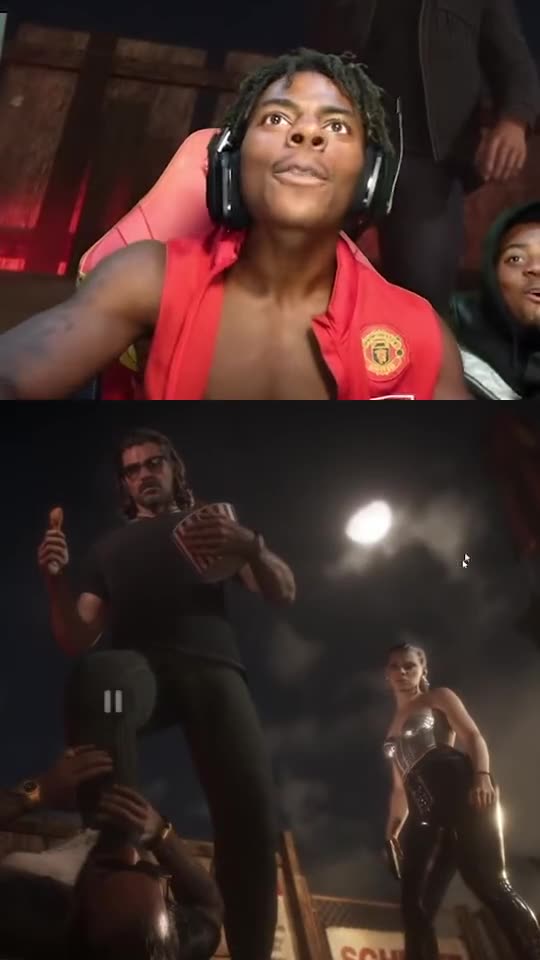
Twitch streams are horizontal, with a facecam in a corner. Dramanado stacks the facecam and the gameplay automatically in the vertical frame, so viewers see your reaction and what triggered it. No layout to build. More in smart vertical reframing.
Finding the best moments in a long stream
The AI picks the strongest moments of the range you chose and gives each clip a viral score from 0 to 99. Even clutch moments without commentary can make the cut. See viral moment detection.
Clipping a long stream in several passes
Each project covers up to 70 minutes. For a four-hour stream, run several projects on different ranges, one at a time. On Auto, the number of clips adapts to the length of each range; you can also set it yourself.
Clipping someone else's stream
Many clippers work with streamers. That is fine with the streamer's permission, and you confirm it on every project. Without it, platforms may flag clips as unoriginal or remove them. Read clipping, copyright and permission and clips for agencies and clippers.
Can I clip a Twitch stream longer than 70 minutes?
Yes. Pick a range of up to 70 minutes per project. Your clips come from that part only. Run more projects for other parts.
Does it work with streams without a facecam?
Yes. The edit adapts to what is on screen, and the AI still picks the strongest moments.
Which length should I use for TikTok?
Short (30-60 s) for reach, or Monetizable (61-90 s) if you want clips over 1 minute, the length TikTok pays for.
Can I clip Kick streams the same way?
Yes, see Kick stream clips.
Try it on your own video
Paste a Twitch, Kick, YouTube or TikTok link and get captioned clips in minutes.