
Zooms, Emojis, Sound Effects and B-Roll: Automatic Editing
Auto zooms on punchlines, animated emojis, subtle sound effects, B-roll, music, silence cutting and a progress bar: editing that keeps viewers watching.
A raw clip with captions is a start. What keeps people watching to the last second is pacing: a zoom on the punchline, a sound on the cut, no dead air. Dramanado adds these touches automatically, and you decide which ones you want in the editing step.
Zooms on punchlines
The AI zooms in on punchlines and new sentences. Small changes in framing reset the viewer's attention and give the edit rhythm, the way a human editor would cut it.
Animated emojis
Animated emojis appear on the strongest words. They add emotion and help sound-off viewers catch the tone of a line. Turn them off for a more serious look.
Subtle sound effects
Light sound effects play on cuts and key moments. They are designed to stay subtle: enough to add punch, not so much that they cover the voice.
B-roll on key words
With B-roll on, royalty-free images illustrate key words, for example when a speaker mentions a place or an object. Image credits are listed with the clip.
Background music
Choose Auto and the AI picks music that suits the story, or None to keep only the original audio. If your video already has music, None is usually the better choice.
Cut silences
Pauses and hesitations are removed for a tighter pace. This is one of the most effective options for podcasts and talking heads, where natural speech has lots of small gaps.
Progress bar
A thin bar at the bottom shows how much of the clip is left. Knowing the end is near is a small nudge to keep watching, which matters for longer clips like the 61-90 s format.
Editing adapts to your video type
These options are tuned to the video type: a podcast, a gaming stream and a comedy sketch do not get the same zooms, cuts and effects. The type is set automatically, or you can set it yourself.
- Podcast and talking head: zooms and silence cutting do the heavy lifting.
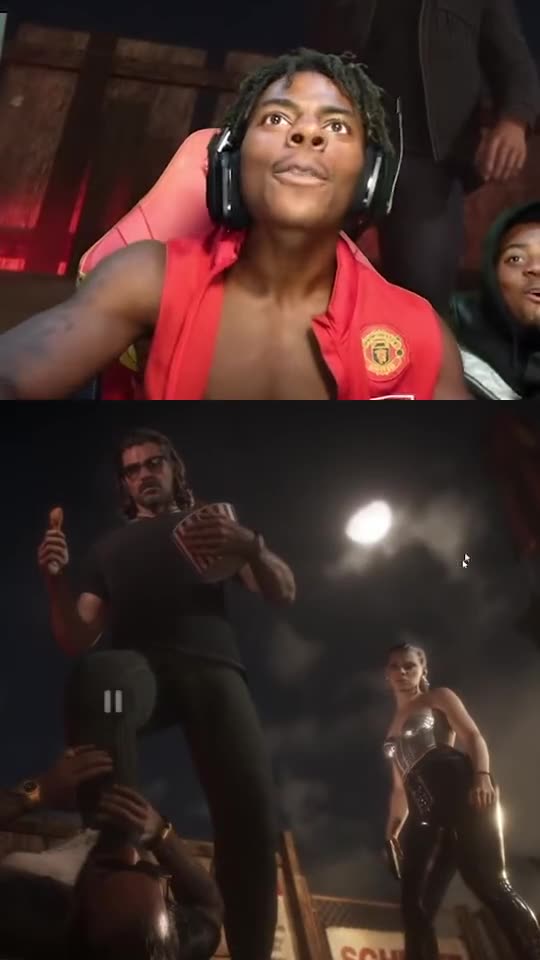
- Gaming and reaction: faster energy, emojis and sound effects on big moments.
- Serious topics: consider turning off emojis and sound effects, or say so in the brief.
For the start and end of each clip, see hooks, titles and endings. For captions, see animated captions. Ready to try? Open the dashboard.
Fine-tune with the brief
Beyond the switches, the brief lets you describe the edit you want in plain words: 'serious tone, no emojis or sound effects', 'lots of energy', 'keep the original pacing'. The AI follows it at every step, from selecting moments to editing.
Can I turn off emojis and sound effects?
Yes. Every editing option can be switched on or off in the editing step.
Are the B-roll images copyright-free?
B-roll uses royalty-free images, and the image credits are shown with the clip.
Will cutting silences make speech sound unnatural?
It removes pauses and hesitations to tighten the pace. If you prefer the original rhythm, turn it off.
Try it on your own video
Paste a Twitch, Kick, YouTube or TikTok link and get captioned clips in minutes.